
Best CS2 Audio Settings 2026: How to Hear Footsteps Clearly
Best CS2 Audio Settings 2026: How to Hear Footsteps Clearly
In Counter-Strike 2, audio is just as critical as your crosshair placement. The Source 2 engine introduced a completely revamped volumetric audio system, meaning legacy CS:GO sound configurations are no longer optimal. Perfecting your equalizer and isolation parameters is mandatory if you want to pinpoint enemy rotations or catch fake defuse taps.
Calibrating a cs2 prime ready profile with optimal audio configurations gives you a massive advantage in clutch situations. For players wanting to skip the chaotic unranked grind and jump straight into communicative lobbies, securing best cs2 accounts ensures you are matched with teammates who actually utilize their microphones and audio cues.
Understanding CS2 EQ Profiles: Crisp vs. Natural
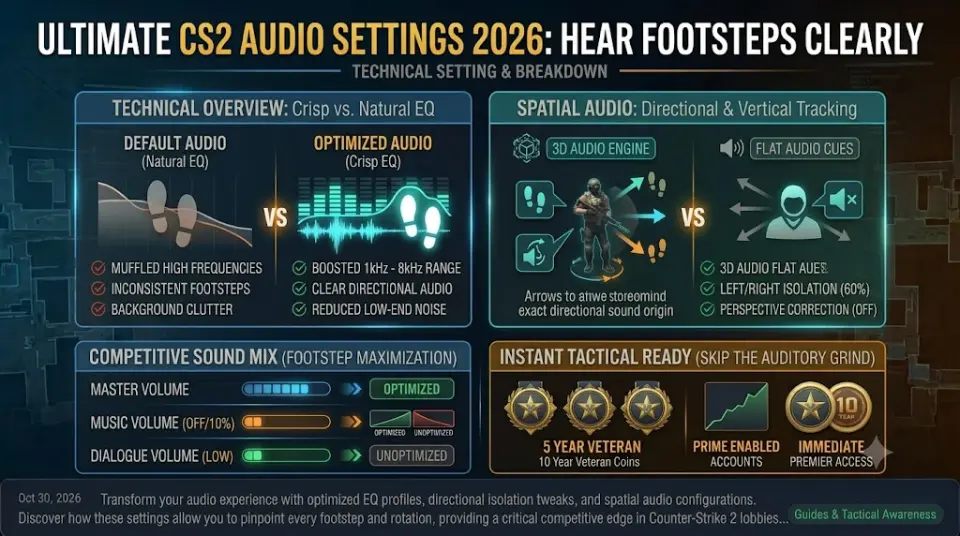
The CS2 settings menu offers native Equalizer (EQ) profiles. These presets adjust frequency balances to either highlight specific audio cues or protect your ears during long sessions:
- Crisp (Recommended): Boosts the mid-to-high frequencies where footstep sounds, reload clicks, and grenade pins register. This is the undisputed best setting for competitive awareness.
- Natural: A balanced, flat frequency response. Use this only if the "Crisp" setting causes ear fatigue or if your physical headset already heavily boosts treble frequencies.
- Smooth: Suppresses harsh highs (like headshot crunches and flashbang rings). Avoid this in ranked play, as it actively muffles critical footstep audio.
Optimal Left/Right Isolation & Perspective Correction
To accurately track enemies through walls, your directional audio must be perfectly calibrated. Applying these specific settings will stop audio channels from bleeding into one another:
| Audio Setting | Optimal Value | Why It Matters |
|---|---|---|
| L/R Isolation | 50% - 60% | Prevents sound from blending between earcups. 50% gives distinct left/right separation without sounding artificially disjointed. |
| Perspective Correction | Disabled (No) | Keeps the sound origin locked to map geometry rather than shifting aggressively based on your camera FOV. |
| Enable 3D Audio | Enabled (Yes) | Forces the Source 2 engine to calculate vertical audio (e.g., Nuke vents or Vertigo ramps) accurately. |
For a deeper dive into how professional players configure their Windows sound properties alongside these in-game options, review the Esports.gg CS2 Audio Settings Guide.
Minimizing Audio Clutter (Music Volumes)
The fastest way to miss an enemy flank is having the in-game soundtrack blasting over the match. Adjust your music settings to these strict competitive baselines:
- Master Volume: 60% - 80% (Adjust your Windows system volume instead of maxing this out to avoid digital distortion).
- Main Menu / Round Start / Action Volume: 0% (Pure distraction).
- MVP Volume: 0% (Prevents end-of-round music from masking dropped weapon sounds or saving players).
- Ten Second Warning Volume: 10% - 15% (Keep this barely audible. It is the only music cue you actually need to effectively gauge defuse timings).
Conclusion
Switching your EQ profile to Crisp and dialing in your L/R isolation will immediately make enemy footsteps pop out of the background noise. However, optimal audio only matters if your teammates communicate effectively.
If you are trapped in silent, uncoordinated matches, upgrading to a verified trusted cs2 profile allows you to instantly queue into high-tier, communicative matchmaking.
Explore the full selection of competitive inventory on WayToSmurf today and experience Counter-Strike the way it was meant to be played.