
Best CS2 Autoexec Config Guide 2026: Master Developer Console Commands
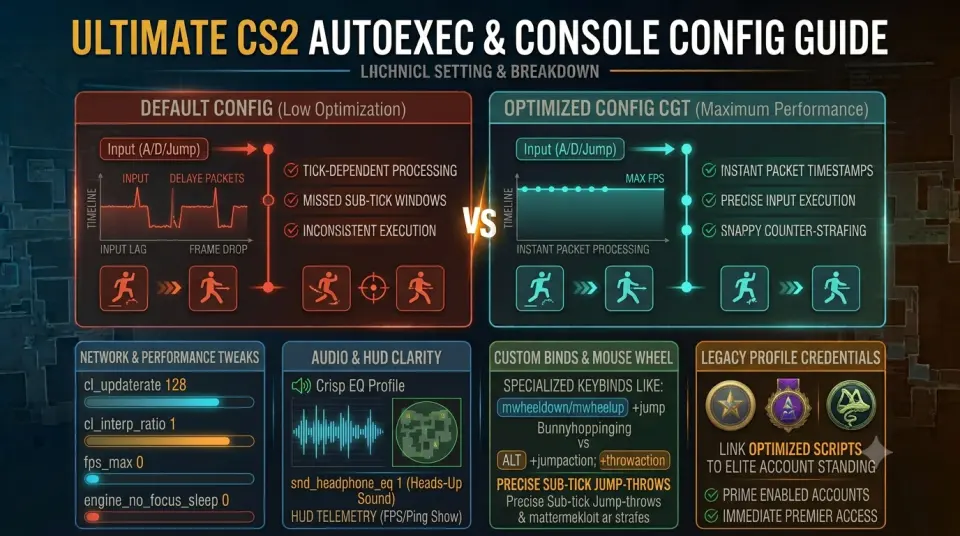
Every time Counter-Strike 2 receives a patch or game update, custom settings and keybinds run the risk of resetting to default parameters. Creating a custom autoexec.cfg file ensures that your network rates, audio tweaks, movement scripts, and HUD preferences automatically load every single time you launch the game.
Setting up a optimized cs2 autoexec config allows you to maintain peak mechanical control and zero latency across every session. Pairing your optimal configuration with a legacy profile like a cs2 operation coin account gives your profile immediate authority and standing in competitive lobbies.
How to Create & Execute Your CS2 Autoexec File
Setting up your config file takes only a few simple steps inside your local Steam installation directory:
- Navigate to your CS2 game directory:
Steam\steamapps\common\Counter-Strike Global Offensive\game\csgo\cfg - Right-click inside the folder, select New > Text Document, and name it
autoexec.cfg(make sure file extensions are visible so it saves as a.cfgfile and not a.txt). - Paste your custom console commands into the file and save it.
- Open Steam, right-click CS2, go to Properties, and add
+exec autoexec.cfginto your Launch Options.
Essential Commands for Your Autoexec File
Copy and paste these competitive standard commands directly into your text document to optimize overall responsiveness:
| Category | Console Command String | Performance Benefit |
|---|---|---|
| Network & Sub-Tick | cl_updaterate 128cl_interp_ratio 1 |
Ensures maximum network data packet throughput with low interpolation delay. |
| FPS & Refresh Rate | fps_max 0engine_no_focus_sleep 0 |
Uncaps frame rate output and prevents performance drops when tabbed out. |
| Audio & Sound | snd_headphone_eq 1volume 0.8 |
Forces Crisp EQ profile processing and maintains stable master volume output. |
| Radar & HUD | cl_radar_scale 0.35cl_hud_telemetry_frametime_show 2 |
Displays full map sightlines and enables clean FPS/ping telemetry metrics. |
Stay informed on official developer updates and competitive patch notes via HLTV CS2 Esports Portal.
Recommended CS2 Launch Options (2026)
Alongside your autoexec file, applying clean launch options in Steam streamlines initial game startup and maximizes system performance:
-novid -nojoy +exec autoexec.cfg -high
-novid: Disables the intro movie sequence to launch directly into the main menu.-nojoy: Disables joystick system memory allocation to free up system resources.-high: Gives the CS2 process high priority execution on CPU threads.
High-Trust Profile Credentials for Premier Play
Having a fully optimized autoexec configuration guarantees crisp execution, but enjoying high-tier matchmaking relies on having a secure, established profile.
Enhance your account prestige by exploring our catalog of cs2 veteran coin accounts featuring 5 and 10-year badges, or browse our verified cs2 prime accounts to jump directly into trusted matchmaking.
Conclusion
Building a custom CS2 autoexec config preserves your essential keybinds, sub-tick netcode settings, and audio preferences through every game update. Combining clean console scripts with high-trust profile credentials yields the ultimate competitive advantage.
Discover our complete selection of Prime and Premier-ready accounts on WayToSmurf today and experience elite gameplay without setup friction.