
How to Build a Low-Latency Gaming Setup for Online FPS (2025 Guide)
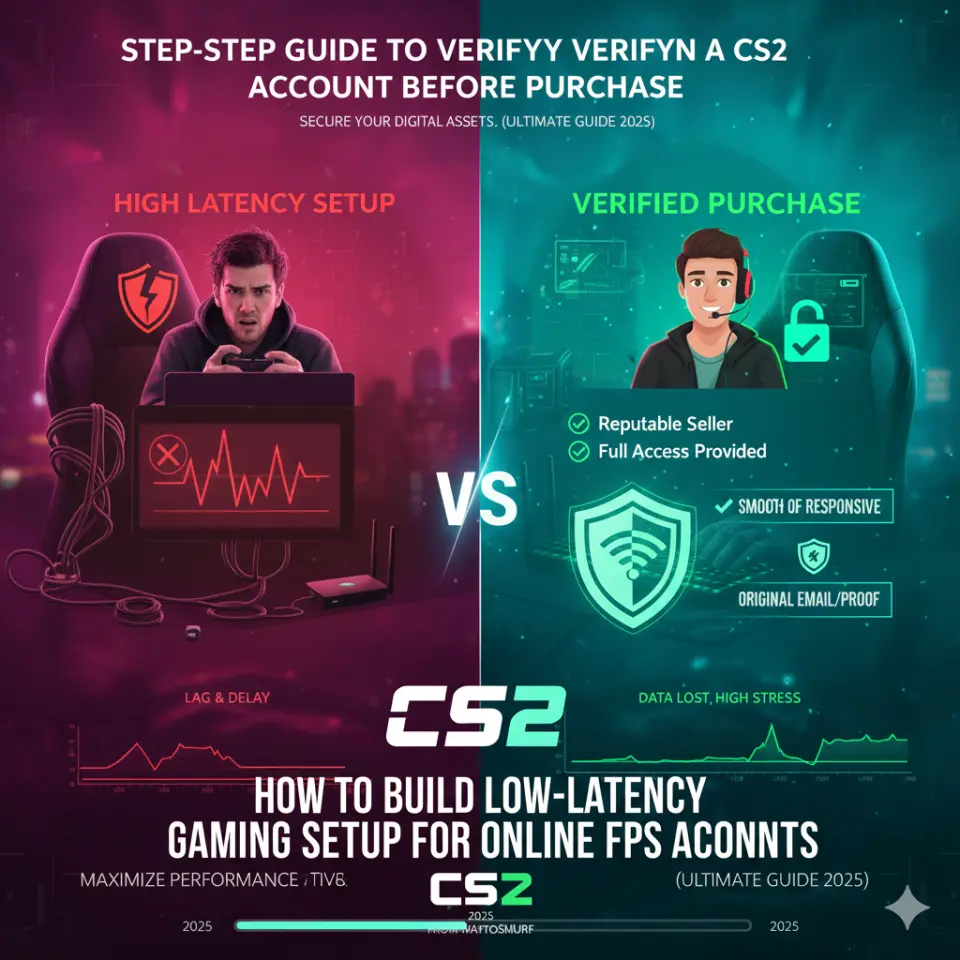
Competitive online FPS gaming (including games like CS2, Valorant, and Call of Duty) demands precision, fast reactions, and minimal latency. A single frame of delay can mean a lost duel, a missed peek, or a lost round. If you want to consistently perform at your best, you need a gaming setup that prioritizes low latency from hardware to network to system optimization.
Whether you’re grinding ranks solo or aiming to dominate with a competitive squad, this guide will walk you through every step of building a low-latency gaming setup that gives you an edge.
If you’re also looking for cs2 accounts for sale with competitive readiness and high trust factor to jump straight into action, explore here:
👉 Counter Strike 2 Premier Accounts
What Is Latency & Why It Matters in Online FPS
Latency, often measured as ping, is the time it takes for data to travel from your gaming device to the game server and back. It’s measured in milliseconds (ms).
- Lower latency (10–30 ms): Near-instant responsiveness
- Moderate latency (30–60 ms): Playable with slight delay
- High latency (80+ ms): Noticeable lag, delayed shots
In FPS games where milliseconds count — peak timing, spray control, and shot registration all depend on responsive inputs. Reducing latency helps with:
✔ Faster aiming and movement decisions
✔ More accurate shots
✔ Better server synchronization
✔ Reduced rubber-banding and stutter
1. Choose the Right Internet Connection
Your internet connection is the foundation of low latency.
Wired vs Wireless
- Wired (Ethernet): Always best — stable, low latency, consistent performance
- Wireless (Wi-Fi): Convenient but prone to interference and fluctuations
Recommendation: Always connect your gaming PC or console via Ethernet cable directly to the router.
Internet Speed vs Latency
High speed doesn’t necessarily mean low latency. For FPS gaming:
✔ Latency matters more than speed
✔ 10–30 ms is ideal
✔ Speeds of 50–100 Mbps are sufficient for gaming; higher helps downloads/streams
Contact your ISP if your ping frequently spikes — sometimes changing DNS or routing helps.
2. Use Gaming-Optimized Hardware
Gaming Router
Not all routers prioritize gaming traffic.
Look for routers that offer:
🔹 QoS (Quality of Service) — prioritizes gaming packets
🔹 Dual-band or tri-band support
🔹 Stable firmware updates
🔹 Gaming-specific optimizations
Examples include routers with built-in gaming acceleration features.
Ethernet Cable Quality
Avoid cheap or damaged cables.
✔ Use Cat6 or above
✔ Avoid long, tangled runs
✔ Shielded cables help reduce interference
PC / Console Performance
A well-optimized machine reduces processing delay before data even leaves your system.
3. Optimize Your PC for Low Latency
Even with great hardware, system settings influence latency.
A. Update Drivers
Ensure drivers are up to date:
- GPU drivers (NVIDIA/AMD)
- Network adapter drivers
- Motherboard chipset
Updated drivers often include performance and latency improvements.
B. Turn Off Background Apps
Background downloads, cloud sync, or software updates spike bandwidth and latency.
✔ Disable auto-updates during play
✔ Close Discord streaming if unused
✔ Pause file backups
C. Adjust Operating System Settings
Windows tips for low latency:
- Turn on Game Mode
- Disable unnecessary startup programs
- Prioritize high-performance power plan
- Turn off Windows updates while gaming
These reduce micro-delays and resource contention.
4. Tuning In-Game Settings for Responsiveness
FPS games allow internal settings that directly affect latency perception.
A. Frame Rate (FPS)
Higher frame rate = smoother experience.
✔ Aim for 144+ FPS for competitive play
✔ Matching your monitor’s refresh rate improves responsiveness
Lower FPS makes latency feel worse even with good ping.
B. V-Sync Off
Vertical sync can introduce input lag — turn it OFF for competitive play.
C. Network Settings
Some games let you tweak network interpolation and buffer settings:
✔ Lower interpolation improves responsiveness
✔ Too low might cause packet jitter — find balance
Always experiment to find what feels responsive without stutter.
5. Reduce Network Interference
Even with wired connections, other network devices can interfere.
A. Avoid Peak Household Usage
If someone streams 4K or downloads large files, your ping may spike. Try:
✔ Gaming during low traffic hours
✔ Ask others to pause heavy downloads
B. Set QoS on Router
Quality of Service lets you prioritize gaming traffic over streaming or downloads.
✔ Prioritize game client or device
✔ Set voice/chat traffic slightly lower
This ensures minimal lag even when others use the network.
6. Choose the Right Game Servers
Distance matters — longer physical distance means higher ping.
A. Select Closest Server Region
Always choose the region with the lowest ping:
✔ NA players choose US East/West based on location
✔ EU players use central EU regions
Some games auto-select — verify manually for best results.
B. Use Ping Monitoring Tools
Some games show expected ping before queue — choose the server with minimum expected delay.
7. Use Gaming VPN (If Needed)
Although VPNs usually increase latency, in some cases they can:
✔ Reduce routing hops
✔ Bypass congested ISP routing
✔ Stabilize jitter
Only use gaming VPNs with servers close to the game server — otherwise avoid it.
8. Configure Your Graphics for Speed
While graphics don’t directly affect network latency, they influence perceived responsiveness.
A. Lower Input Latency
✔ Enable Low Latency Mode (GPU settings)
✔ Use Fullscreen Exclusive Mode if available
B. Reduce Stunning Effects
Disabling overly heavy visuals can improve FPS and reduce input delay.
✔ Turn off motion blur
✔ Lower unnecessary post-processing
A responsive screen = faster reaction times.
9. Monitor Your Network Regularly
Tools like:
📍 PingPlotter
📍 WinMTR
📍 In-game netgraphs
…help track latency spikes, packet loss, and jitter.
Regular monitoring helps isolate if issues are:
✔ Local (your network)
✔ ISP routing
✔ Game server related
10. Pro Tips for Competitive FPS Performance
Here are additional FPS-specific adjustments:
A. Use Wired Gaming Peripherals
✔ Wired mouse = lower click-to‐response latency
✔ Wired keyboard for precision
✔ Gaming mousepad for consistent movement
Wireless can be convenient, but even small delay matters in FPS.
B. High Refresh Rate Monitors
✔ 144Hz or 240Hz monitors
✔ Lower display input lag
✔ Smoother motion perception
Higher refresh rate helps your brain register action sooner.
C. Audio Optimization
Use low-latency headsets and disable audio enhancements.
✔ Turn off surround virtualization if not beneficial
✔ Use gaming audio profiles
Audio cues are critical in FPS, and lower audio lag improves reaction response.
11. Common Latency Killers & How to Fix Them
| Issue | Cause | Fix |
|---|---|---|
| High Ping | ISP route | Contact ISP or change DNS |
| Jitter | Network congestion | QoS + limit devices |
| Packet Loss | Faulty cable/router | Replace hardware |
| Background Sync | Cloud backup | Disable during play |
| Signal Interference | Wireless congestion | Switch to wired |
Addressing these consistently smooths your game traffic.
12. Keeping Your System & Network Updated
Stability and low latency improve when:
✔ Firmware is updated (router/modem)
✔ System has latest patches
✔ Network drivers are current
✔ Game patches are applied
Avoid critical updates during play — schedule them for downtime.
13. Psychological Edge — Confidence & Tools
Performance isn’t only hardware:
✔ Know your ping norm
✔ If lag spikes, pause and diagnose
✔ Don’t tilt — frustration causes poor play decisions
A calm, optimized player performs far better.
14. Why a Good Gaming Setup Enhances Your CS2 Experience
Low latency = better:
- Hit registration
- Spray control timing
- Movement prediction
- Peak readiness
Combine this setup with a competitive CS2 ready profile, and you’re positioned well for improvement.
👉 Browse trusted cs2 accounts for sale here:
Counter Strike 2 Premier Accounts
Good accounts with higher trust factor mean smoother matchmaking — and when paired with low latency setup, you create a powerful competitive environment.
15. Mistakes to Avoid When Optimizing for Low Latency
❌ Relying solely on Wi-Fi
❌ Ignoring background apps
❌ Overspending on unnecessary hardware
❌ Not monitoring network usage
❌ Skipping driver/firmware updates
❌ Believing “speed > latency”
Focus on stability and responsiveness — that’s what competitive gameplay demands.
16. Example: Optimized Setup Checklist
| Category | Minimum |
|---|---|
| Internet | Wired Ethernet |
| Ping | <30 ms |
| Router | Gaming QoS capable |
| Monitor | 144Hz+ |
| GPU | Recent drivers |
| System | Updated OS |
| Peripherals | Wired gaming mouse/keys |
| Software | Background apps off |
| Network Monitor | Enabled |
This checklist ensures consistent low-latency performance.
Conclusion — Smooth Play Starts with Smart Setup
Competitive FPS gaming isn’t just about aim — it’s about reaction, timing, and responsiveness. A well-built low-latency gaming setup gives you the edge in every duel, peek, and clutch moment.
From Internet connections, hardware choices, software tweaks, and network optimization to monitoring and skillful play, every element contributes to the outcome.
And if you’re ready to take your competitive journey further — including having smoother matches right from day one — explore cs2 accounts for sale from trusted marketplaces to enhance your gameplay experience:
👉 Counter Strike 2 Premier Accounts
Play faster, play smoother, and play smarter. Your next headshot is one millisecond away. 🎮🔥