
Best CS2 Video Settings 2026: How to Maximize FPS & Visibility
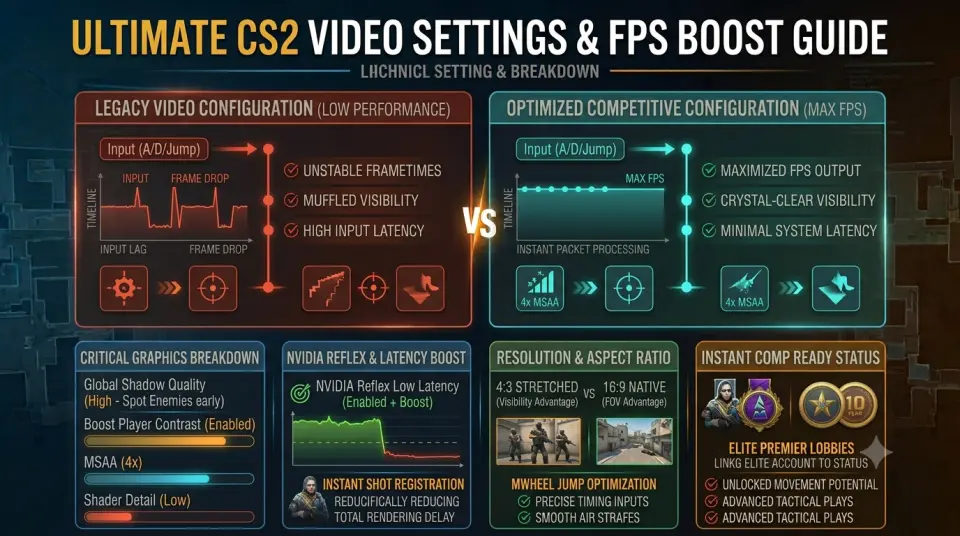
The Source 2 engine brought modern lighting, volumetric smoke, and enhanced particle effects to Counter-Strike 2. While the game looks visually impressive, running default or ultra graphics presets can severely drop your frame rate, introduce stuttering, and create noticeable input lag during intense gunfights.
Configuring the cs2 best video settings ensures maximum frametime stability and crystal-clear player visibility across every competitive map. If you are looking to test your optimized frame rate in verified, high-trust lobbies without grinding unranked matches, opting to buy cs2 prime account inventory gives you instant access to Premier Mode queues.
Competitive Video Settings Breakdown
To strike the ideal balance between high frame rates and tactical visibility, apply these specific graphics settings in your CS2 video menu:
| Setting Option | Recommended Value | Competitive Purpose |
|---|---|---|
| Display Mode | Fullscreen | Eliminates desktop window composition lag for the lowest input delay. |
| Boost Player Contrast | Enabled | Outlines enemy character models against dark map backgrounds. |
| Multisampling Anti-Aliasing (MSAA) | 4x MSAA | Smooths jagged edges and reduces pixel shimmering on thin railings. |
| Global Shadow Quality | High | Critical: Renders enemy player shadows around corners before they peek. |
| Model / Texture Detail | Low | Saves VRAM and prevents frame dips during heavy utility drops. |
| Shader Detail | Low | Reduces unnecessary surface reflections and glare. |
| Particle Detail | Low | Keeps framerates smooth when shooting through dense HE grenade smoke. |
| Ambient Occlusion | Disabled | Removes extra contact shading to make target identification faster. |
NVIDIA Reflex & Low Latency Configurations
System latency measures the delay between your mouse click and the action appearing on your screen. You can track official tournament hardware benchmarks and optimization updates on HLTV Esports.
To minimize rendering delay within CS2, configure your latency settings as follows:
- NVIDIA Reflex Low Latency: Set to Enabled + Boost. This forces your GPU clock speeds to remain at peak performance during heavy engine loads.
- Nvidia Control Panel G-Sync: Disable G-Sync and V-Sync inside your driver settings to prevent artificially capped frame times in competitive FPS games.
- Max Frame Rate: Keep uncapped in-game using
fps_max 0inside your launch parameters.
Resolution & Aspect Ratio: 16:9 vs 4:3 Stretched
Choosing your resolution comes down to personal preference, but understanding the trade-offs is essential:
- 16:9 Native (1920x1080): Provides the widest Field of View (FOV), allowing you to spot enemies on the edges of your screen.
- 4:3 Stretched (1280x960): Makes player models appear wider and easier to hit, though enemy movement speed appears visually faster across your display.
Account Setup for Competitive Play
Once your graphics and framerates are fully calibrated, verify that your account credentials match competitive standards:
- Active Prime Status: Secures placement in official sub-tick Premier queues with care package eligibility.
- Original Email Access (OGE): Provided with options like our 10/5 Year Coin Fresh Account to guarantee full Steam security.
- Clean VAC Standing: Verified ban-free history, featured on high-tier profiles like our 2026 Service Medal CS2 Account.
Conclusion
Optimizing your CS2 video settings eliminates unnecessary visual fluff, maximizes your FPS, and provides a clear advantage when spotting enemy shadows and silhouettes. Pairing a high-framerate setup with a verified profile ensures smooth competitive play.
Check out our full line of Premier-ready accounts on WayToSmurf today and start competing at your full potential.