
CS2 Pro Settings Guide 2026: Optimize Your Launch Options & Performance
CS2 Pro Settings Guide 2026: Optimize Your Launch Options & Performance
Achieving peak performance in Counter-Strike 2 requires more than sharp reflexes and mechanical execution. Dialing in optimal graphics configurations, competitive viewmodels, and modern Source 2 engine launch options is fundamental to eliminating input lag and maximizing your FPS.
Whether you are fine-tuning hit registration or looking to copy configurations from elite players, adopting verified cs2 pro settings 2026 standards will give you a distinct advantage. If you want to put your optimized setup to the test immediately in verified lobbies without grinding Private Rank 10, choosing to cs2 premier accounts buy options provides instant access to high-tier competitive matchmaking.
Best CS2 Launch Options in 2026
Many legacy CS:GO launch parameters (such as -tickrate 128 or -d3d9ex) are completely obsolete in the Source 2 engine. Below are the verified launch parameters that actually impact performance and convenience in 2026:
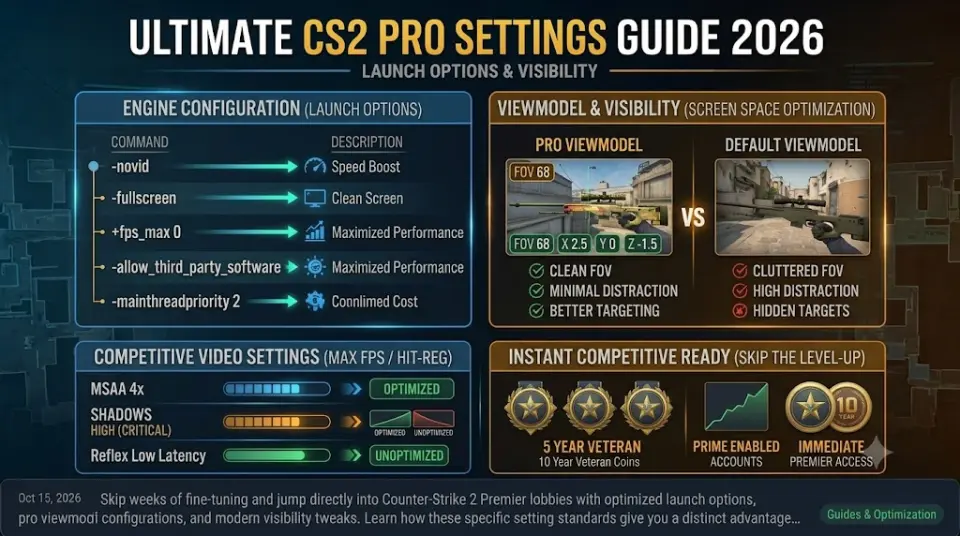
-novid: Skips the Valve startup video for faster loading into the main menu.-fullscreen: Forces the engine into native exclusive fullscreen to minimize desktop display latency.+fps_max 0: Uncaps frame rates to allow your hardware to push maximum FPS and lowest end-to-end rendering delay.-allow_third_party_software: Required if you capture gameplay through external tools like OBS Studio.-mainthreadpriority 2: Gives CS2's main CPU thread higher execution priority for smoother frame delivery.
Pro Viewmodel & Crosshair Standards
Top esports players utilize simplified, non-distracting visual configurations to keep their target area clear during intense gunfights. You can examine detailed global tournament setup data on the Gamesroid CS2 Pro Settings Database.
| Setting Parameter | Standard Pro Value | Console Command / Preset |
|---|---|---|
| Field of View (FOV) | 68 | viewmodel_fov 68 |
| Offset X | 2.5 | viewmodel_offset_x 2.5 |
| Offset Y | 0 | viewmodel_offset_y 0 |
| Offset Z | -1.5 | viewmodel_offset_z -1.5 |
| Preset Position | Classic (2) | viewmodel_presetpos 2 |
In-Game Video Settings for Maximum FPS & Visibility
To keep hitboxes clearly visible while maintaining high sub-tick response rates, apply these video settings:
- Boost Player Contrast: Enabled (Helps enemy models pop against dark backgrounds).
- Multisampling Anti-Aliasing (MSAA): 2x or 4x MSAA (Smooths jagged edges without heavy GPU overhead).
- Global Shadow Quality: High (Critical for spotting enemy shadows around corners before they peek).
- Model / Texture Detail: Low (Frees up VRAM for maximum frametime stability).
- NVIDIA Reflex Low Latency: Enabled + Boost (Reduces overall system latency).
Account Setup for Competitive Play
Before jumping into Premier Mode with your newly calibrated settings, verify these profile security standards:
- Active Prime Status: Ensures placement in official Valve matchmaking with weekly care package rewards.
- Original Email Access (OGE): Available on items like our 10/5 Year Coin Fresh Account to safeguard full Steam account control.
- Verified Ban-Free Record: Clean VAC standing as featured on premier inventory like our 2026 Service Medal CS2 Account.
Conclusion
Fine-tuning your launch parameters, visual configurations, and in-game video settings provides a solid foundation for competitive growth. Pairing an optimized setup with a high-rated profile allows you to bypass entry-level matchmaking hurdles entirely.
Explore our complete catalog of Premier-ready inventory on WayToSmurf today and start competing at your full potential.