Best CS2 Radar & HUD Settings 2026: Maximize Map Awareness
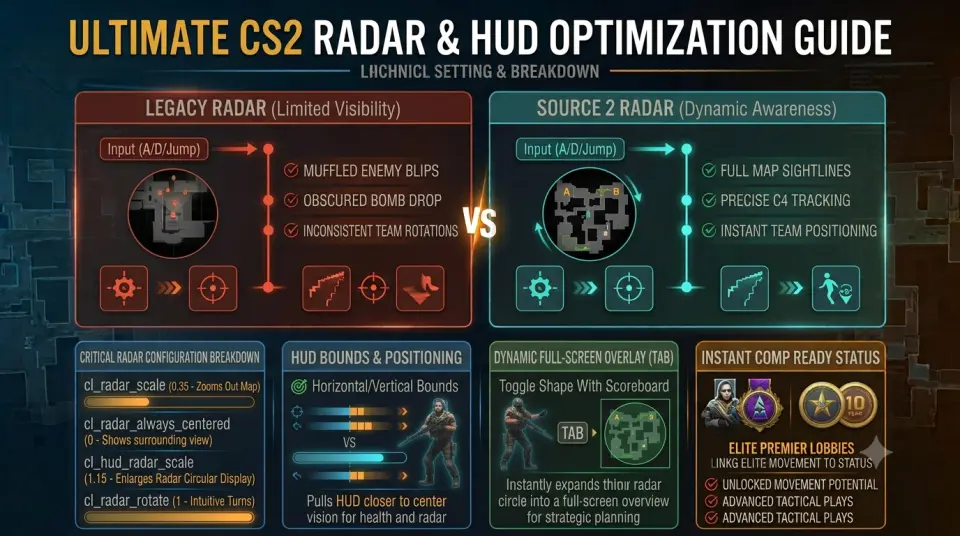
The radar in Counter-Strike 2 is often described as a legal "wallhack" when configured correctly. By default, CS2's minimap is far too zoomed in, masking crucial information about bomb drops, enemy rotations, and teammate engagements occurring across the map. Optimizing your HUD parameters ensures you absorb critical information in milliseconds without breaking crosshair focus.
Pairing optimized cs2 radar settings 2026 standards with an active competitive profile improves your decision-making during fast-paced rounds. If you want to put your upgraded spatial awareness to the test in verified, high-trust lobbies, choosing to buy high rank cs2 account inventory provides direct placement into communicative Premier queues.
Competitive Radar Configuration Breakdown
To ensure your radar displays the entire active map layout regardless of where your character model is standing, apply these settings in your Game options menu:
| Setting Option | Recommended Value | Tactical Purpose |
|---|---|---|
| Radar Centers The Player | Disabled (No) | Prevents the map from following your player icon, keeping the entire site layout visible at all times. |
| Radar Is Rotating | Enabled (Yes) | Aligns map orientation with your camera direction, making split-second turns intuitive. |
| Radar HUD Size | 1.10 - 1.30 | Enlarges the radar circle to make small red enemy blips clearly visible in your peripheral vision. |
| Radar Map Zoom | 0.35 - 0.40 | Crucial: Zooms out the map view to display both A and B bombsites simultaneously. |
| Toggle Shape With Scoreboard | Enabled (Yes) | Pressing TAB expands the radar into a full-screen square map overlay for complex rotation planning. |
For an in-depth review of location callouts across Mirage, Nuke, and Inferno, reference the DMarket CS2 Map Callouts Guide.
Console Commands for Dynamic Radar Control
For advanced players building custom launch scripts, paste these developer console commands directly into your autoexec.cfg:
// Competitive CS2 Radar Commands
cl_radar_always_centered "0"
cl_radar_scale "0.35"
cl_hud_radar_scale "1.15"
cl_radar_rotate "1"
cl_radar_square_with_scoreboard "1"
HUD Edge Positioning & Color Tuning
In addition to radar scale, bringing your heads-up display (HUD) closer to the center of your monitor drastically reduces eye travel time when checking health, ammo, and radar alerts:
- HUD Horizontal / Vertical Bounds: Pull these sliders inward so health and radar icons shift toward your central vision area.
- Player Count Position: Set to display numbers instead of avatars. Reading "3 vs 2" is significantly faster in clutch scenarios than counting individual steam profile pictures.
- HUD Color: Select high-contrast colors like Cyan or Yellow to ensure HUD elements pop against dark map textures.
Securing High-Trust Matches for Team Execution
Having full map sightlines via your radar is most effective when playing alongside teammates who communicate callouts and rotate off radar blips.
Ensure your profile meets high-trust competitive standards by securing options like our 10/5 Year Coin Fresh Account or explore elite options like our 2026 Service Medal CS2 Account to jump directly into prime matchmaking.
Conclusion
Configuring your CS2 radar to display full-map visibility eliminates blind spots and instantly provides situational clarity. Tracking enemy bomb drops and team rotations on your HUD allows you to execute clutches with complete confidence.
Browse our complete catalog of Premier-ready accounts on WayToSmurf today and start dominating competitive lobbies with ultimate map awareness.