CS2 Radar Optimization Guide: Best Minimap Console Commands for Map Awareness
CS2 Radar Optimization Guide: Best Minimap Console Commands for Map Awareness
In competitive Counter-Strike 2, situational awareness separates casual players from high-tier lobby leaders. While gunplay mechanics and recoil control are vital, your in-game minimap provides crucial information regarding enemy positions, dropped C4, and teammate rotations across the entire active duty map pool.
Default game configurations zoom the minimap far too close to your character model, obscuring critical action happening on the opposite bomb site. By applying optimized cs2 radar settings, you can transform your HUD into a full-map visual tool. If you want to put your improved tactical awareness to work in high-trust lobbies immediately, acquiring verified cs2 prime accounts eliminates the initial account leveling hurdle.
Why Default Minimap Settings Hold You Back
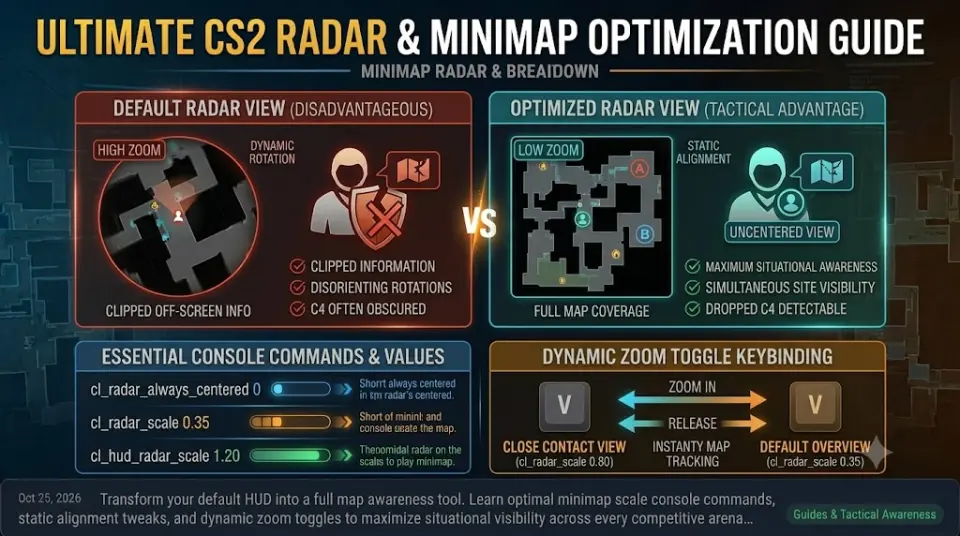
By default, CS2 centers the radar dynamic view around your player model and rotates the map as your crosshair turns. While this feels natural for beginners, it presents major disadvantages in competitive play:
- Clipped Off-Screen Info: Centered radars cut off half of the displayable area when you are positioned near map edges or spawn zones.
- Disorienting Rotations: Rotating maps force your brain to constantly translate directional spatial data relative to static callout locations.
- Excessive Zoom: High default zoom levels prevent you from seeing where enemy contact was made on distant parts of the map.
Essential Minimap Console Commands & Values
You can adjust these settings directly inside the developer console or save them into your personal autoexec.cfg file:
| Console Command | Default Value | Pro Recommended Value | Functional Purpose |
|---|---|---|---|
cl_radar_always_centered |
1 | 0 | Uncenters the camera to show more surrounding map geometry. |
cl_radar_rotate |
1 | 0 (or 1) | Keeps map static so cardinal directions never change. |
cl_radar_scale |
0.7 | 0.35 - 0.40 | Zooms out the view to display both bomb sites simultaneously. |
cl_hud_radar_scale |
1.0 | 1.15 - 1.20 | Increases physical minimap HUD size on your screen. |
cl_radar_icon_scale_min |
0.6 | 0.4 - 0.5 | Reduces player dot overlap in tight corridors. |
For additional deep dives on map-specific radar presets and setup variations, explore the DMarket CS2 Minimap & Radar Configuration Guide.
Creating a Dynamic Radar Zoom Toggle Bind
Sometimes you need to inspect tight corners during clutches without sacrificing full-map coverage during defaults. Adding a dynamic zoom toggle key allows you to switch view scale on the fly:
// Dynamic Radar Zoom Toggle Bind
alias "+radarzoom" "cl_radar_scale 0.8"
alias "-radarzoom" "cl_radar_scale 0.35"
bind "v" "+radarzoom"
Holding the V key temporarily zooms into your position for tight angle clearing, releasing it instantly restores full map visibility.
Combining Game Sense with Verified Accounts
Optimizing your radar HUD gives you the tools needed to react faster to enemy rotations and mid-round calls. However, execution relies on queuing alongside teammates who communicate effectively.
If you are struggling with low-trust lobbies where team calls are nonexistent, starting fresh with a ranked ready cs2 account or an account featuring cs2 service medal profiles ensures high trust status, clean lobbies, and competitive matchmaking quality.
Conclusion
Mastering your minimap configuration eliminates guesswork during intense rotations and clutch scenarios. By lowering radar scale and adjusting HUD sizing, you immediately gain better tactical awareness across every map.
Explore our wide selection of verified CS2 inventory on WayToSmurf today and experience high-trust competitive play at your real skill level.