
Best CS2 Audio Settings 2026: How to Hear Footsteps & Directional Sound
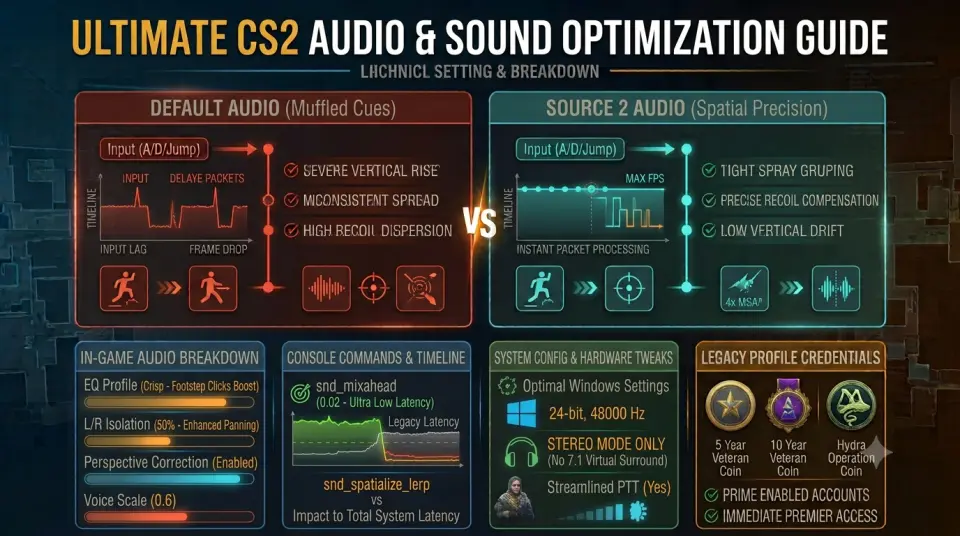
Sound spatialization is often the deciding factor in clutch 1vX scenarios across Counter-Strike 2. Default audio profiles tend to muffle subtle footstep cues under heavy gunshot reverb, making it difficult to pinpoint whether an enemy is rushing from A site connector or flanking through lower middle.
Configuring a dedicated cs2 best audio settings 2026 profile ensures you detect subtle footsteps, bomb defuse clicks, and reload audio queues milliseconds before an enemy rounds a corner. Once your sound engine is optimized, choosing to buy cs2 prime accounts gives you immediate access to communicative Premier lobbies where audio callouts turn into round wins.
In-Game Audio Configuration Breakdown
Navigate to your CS2 Audio settings tab and adjust the primary parameters to prioritize high-frequency footsteps over environmental background noise:
| Setting Name | Recommended Value | Tactical Advantage |
|---|---|---|
| EQ Profile | Crisp | Boosts upper-mid and high frequencies where footstep clicks and pin pulls register. |
| L/R Isolation | 50% – 80% | Separates left and right channel audio, making side-to-side directional cues sharper. |
| Perspective Correction | Enabled (Yes) | Aligns audio positioning directly with your camera angle rather than world coordinates. |
| Ten Second Warning Volume | 10% – 20% | Provides a distinct audio cue for 10-second bomb defuses without drowning out remaining footsteps. |
For more detailed technical guides on client setup, check out the DMarket CS2 Settings Guide.
Console Commands for Dynamic Audio Control
Add these developer console commands into your autoexec.cfg to minimize sound engine latency and prevent communication clutter during clutches:
// Competitive CS2 Audio Commands
snd_mixahead "0.02" // Reduces audio processing latency
snd_headphone_pan_exponent "1.2" // Enhances distant directional sound panning
snd_spatialize_lerp "1" // Smooths audio transitions when turning quickly
voice_scale "0.6" // Balances teammate voice chat volume against game audio
Windows Audio Enhancements & Virtual Surround Setup
To prevent phase cancellation and muddy soundscapes, follow these crucial system-level guidelines:
- Disable 7.1 Virtual Surround: Turn off third-party 7.1 virtual spatial audio software. CS2’s native Source 2 audio engine is designed specifically for stereo headphones.
- Sample Rate Setting: In Windows Sound Properties, set your output device to
24-bit, 48000 Hz (Studio Quality)for pristine audio throughput. - Streamlined Push-To-Talk: Enable Streamlined Push-To-Talk in-game to eliminate microphone activation delay when calling out enemy rotates.
Elevate Your Competitive Lobby Experience
A crystal-clear audio setup gives you maximum tactical awareness, but executing site hits requires teammates who respond to your audio callouts.
If you need a budget-friendly alternate profile for practice or queuing with friends, securing a cheap cs2 prime account offers a clean slate. You can also explore our full selection of verified CS2 Premier accounts on WayToSmurf to play in high-trust lobbies.
Conclusion
Optimizing your CS2 audio settings eliminates unnecessary menu music and background reverb, allowing you to hear enemy footsteps with directional precision. Pair your new spatial awareness with a trusted Premier account to start winning more clutches today.